

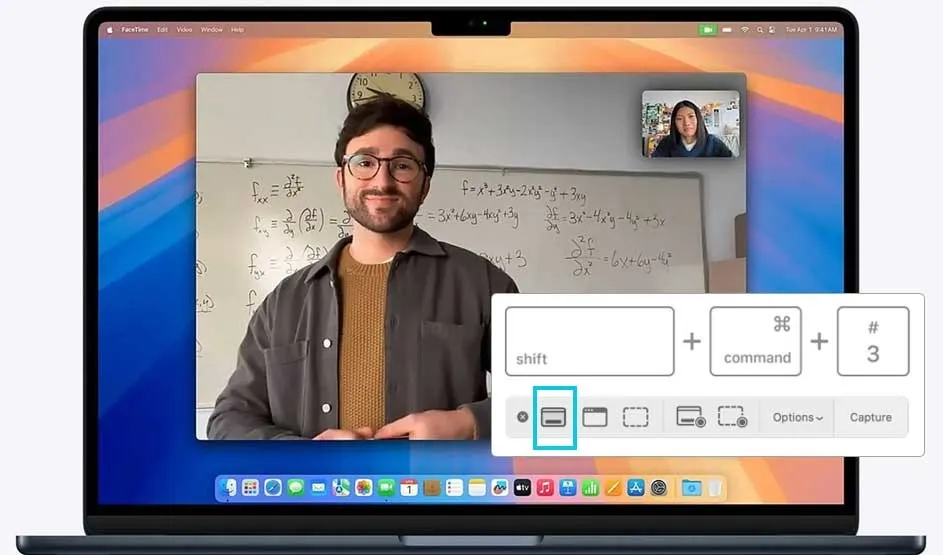
Full Screen screenshot
- Press Shift + Command (⌘) + 3.
- The entire screen is saved as an image.
- Find the file on your desktop.


A screenshot is a still image of what’s currently on your screen, which is ideal for saving or sharing visual information quickly. A screen recording captures your actions as a video, useful when explaining a process step by step. Both are easy to do on a MacBook or iMac, and we’ll walk you through all the options below.
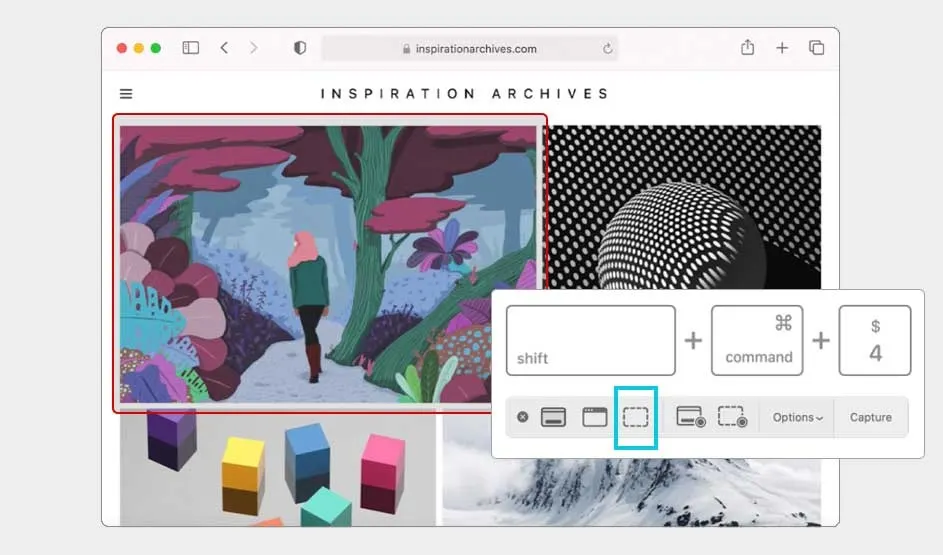
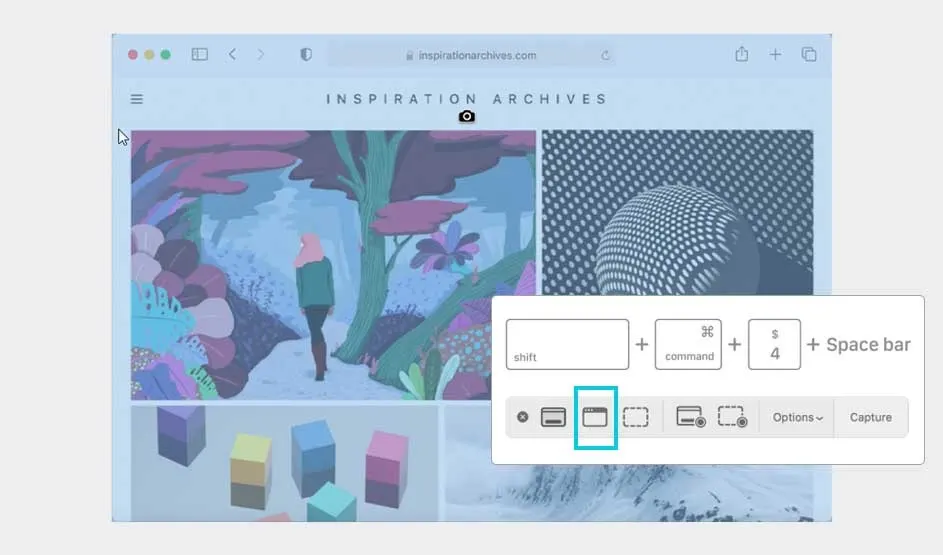
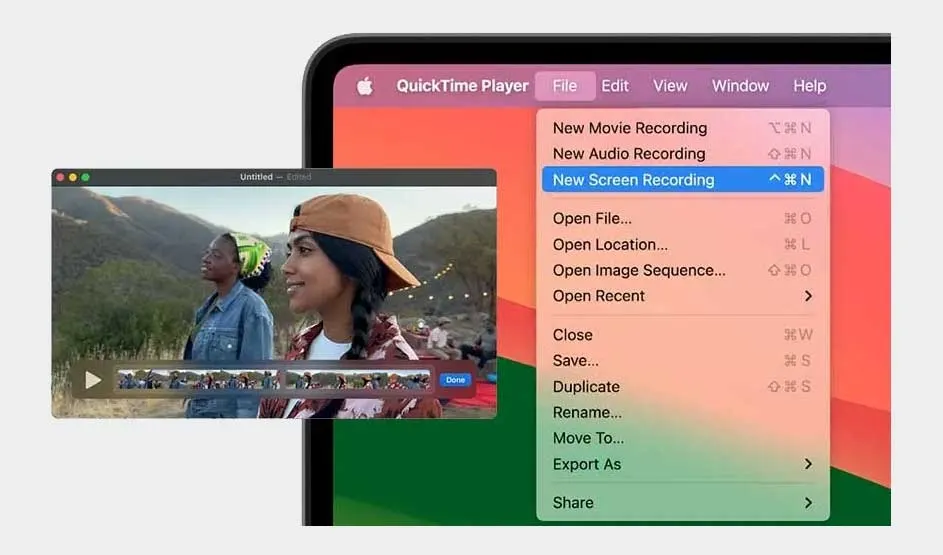
Tip: When you take a screenshot, a thumbnail briefly appears in the bottom-right corner. Click it to quickly edit, copy, or share your screenshot.
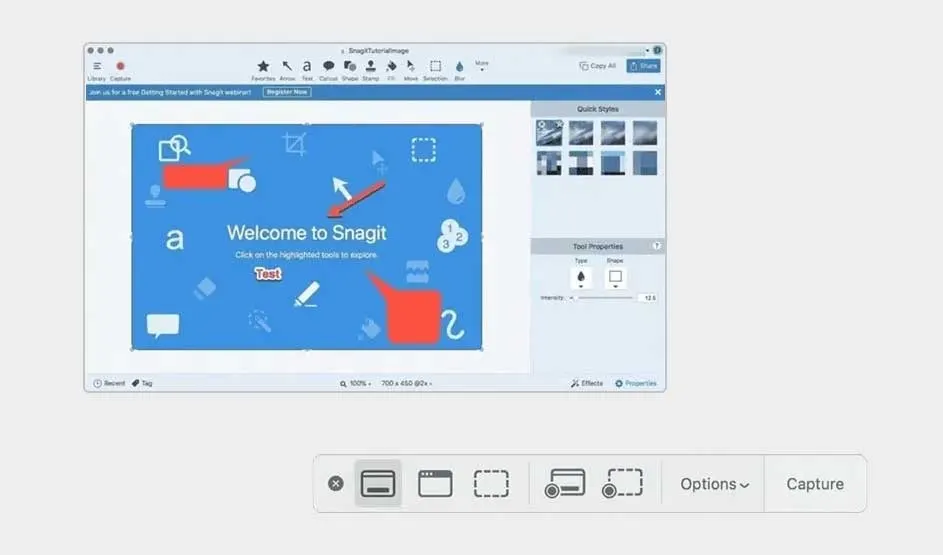
macOS includes handy tools and third-party apps to make screenshots and recordings even more useful:

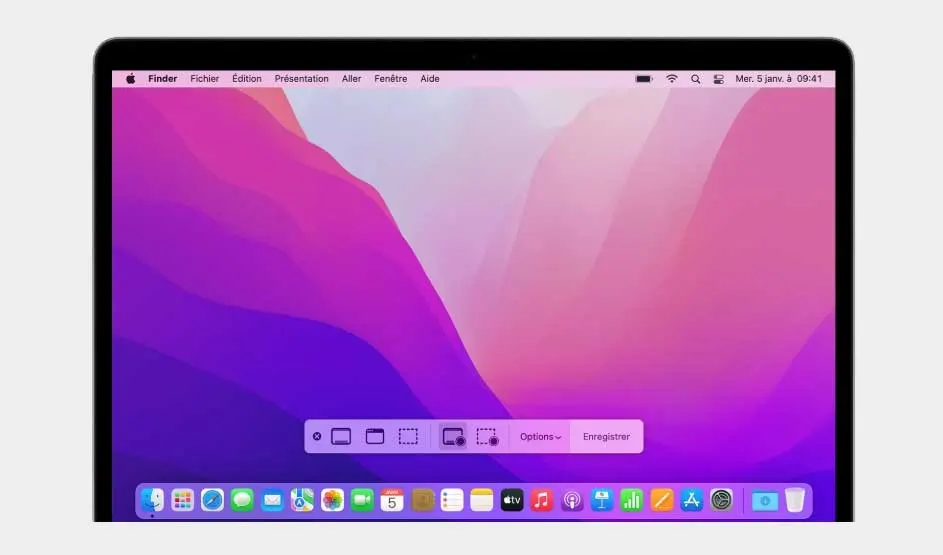
The basic screenshot shortcuts and functions work the same across MacBook Pro, MacBook Air, iMac, and Mac Mini. However, keyboard layouts (like AZERTY or QWERTY) or screen resolutions might differ slightly. Macs running older versions of macOS may lack some features; for example, Shift + Command + 5 won’t work on macOS versions before Mojave. On iPhones or iPads, the process is different.
Taking screenshots and screen recordings on a Mac is simple. Whether you want to capture an entire screen, a single window, or a small selection, macOS makes it easy with shortcuts and built-in tools. For added functionality, try apps like Snagit or QuickTime. In just a few steps, you'll have everything you need on-screen and ready to share.