MM logo white 1
MM logo red
Image description is not available

What to do if your computer won’t start

Luca22 OCTOBER 2025
Laptop on a wooden desk with a notebook, pen, and a wooden frame.

If your computer crashes and won’t start or shows a black screen, there could be several reasons. On this page, we’ll guide you step-by-step through the process and help you identify and resolve the most common causes so you can get your PC up and running again.

Your PC won’t start, what now?

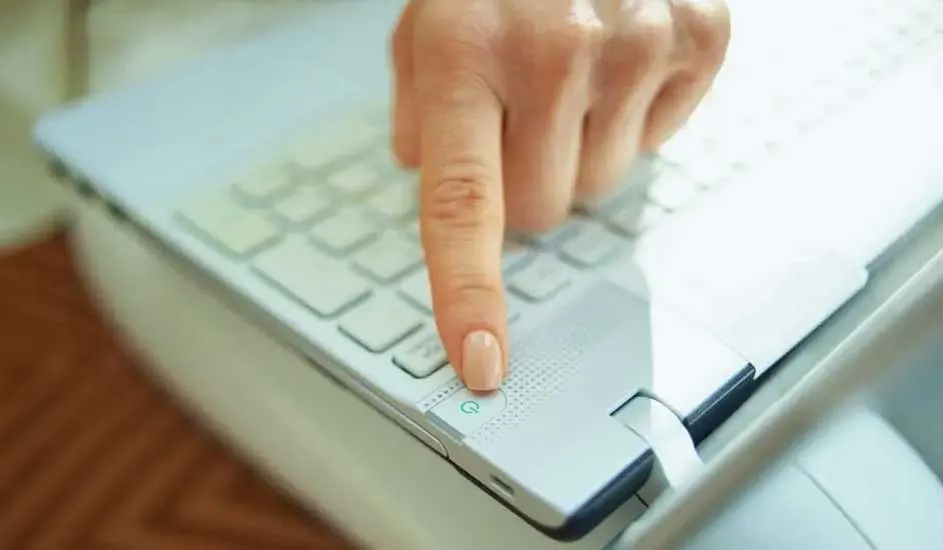
A finger presses the power button on a white laptop keyboard. The background is blurred.

If your PC won’t start, it’s important to proceed systematically. Often, the problem is a minor issue that you can fix yourself. There are several possible causes, and the solution depends on the type of error you encounter. Sometimes it’s a power supply issue, other times it’s caused by external devices or software problems. We’ll start with the most obvious checks and then move on to more advanced solutions.

View all desktops
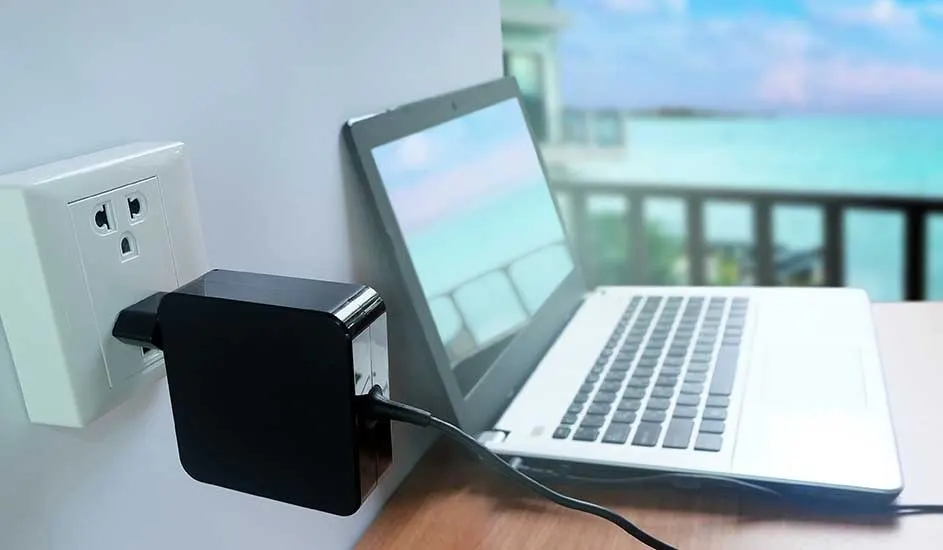
Laptop on a desk, charger plugged into wall. Ocean view in background, seen through window.

Check if the charger and power cable are properly connected

This may sound obvious, but it’s worth double-checking. First, ensure the power cable or adapter is correctly connected.

  • For laptops: Is the charger properly plugged into the socket and the device?
  • For desktops: Is the power supply correctly connected?

Also check if the power outlet is working.

A laptop sits on a sofa, with a grey sweater and blue jeans visible. A wooden and glass partition is in the background.

Is your PC overheating?

An overheated PC can refuse to start. Feel the casing – if it’s very warm, let your PC cool down before trying to start it again. Also ensure the ventilation openings aren’t blocked.

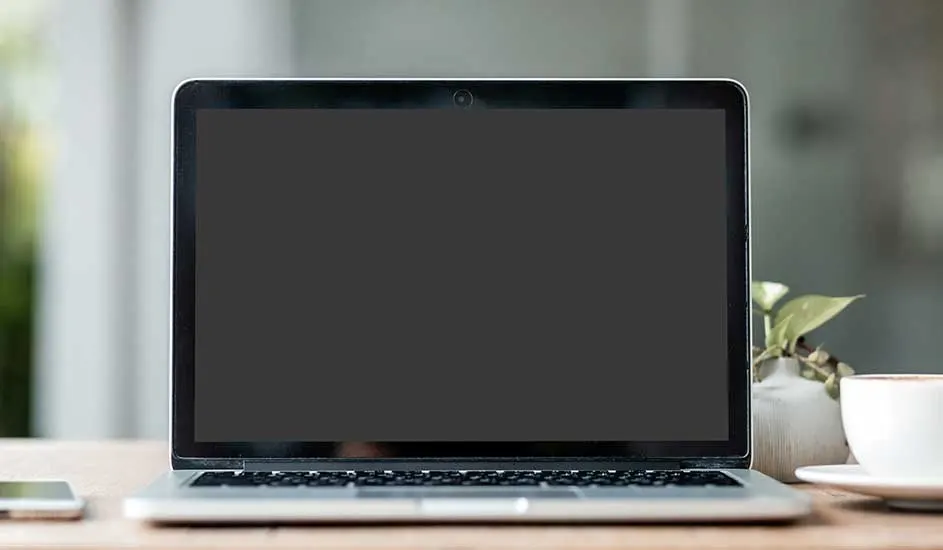
A laptop with a dark screen sits on a wooden table. A smartphone, coffee cup, and plant are nearby. The background is blurred.

Check the monitor functionality

Black or blue screen on startup? Your monitor might not be working even if your PC is starting up. Check if the monitor is switched on and all cables are properly connected. Try using an external monitor or a different cable if possible.

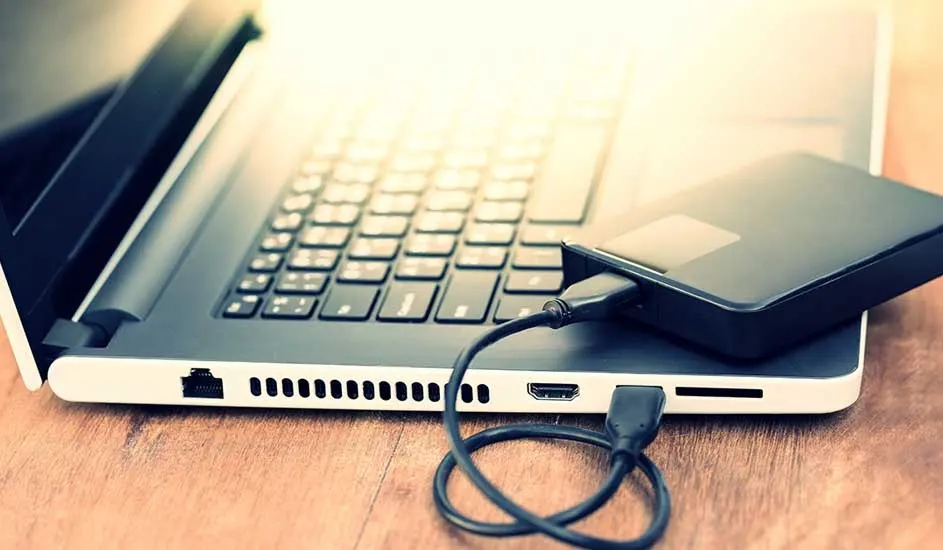
Laptop on a wooden surface, connected to a black external hard drive with a USB cable.

Remove external devices

Sometimes connected devices, such as USB sticks, external hard drives, or printers, prevent the startup process. Disconnect everything and try again, then attempt to restart your computer.

Close-up of a laptop on a lap. A table holds a white mug, a plant, a notebook, and a pen. A gray rug is visible.

Restart your PC or boot into safe mode

A simple restart can work wonders. If normal startup fails, try booting into safe mode (press F8 or Shift + F8 during startup). Here you can troubleshoot and possibly resolve conflicts. Safe mode starts Windows with minimal drivers and services, helping to identify software problems.

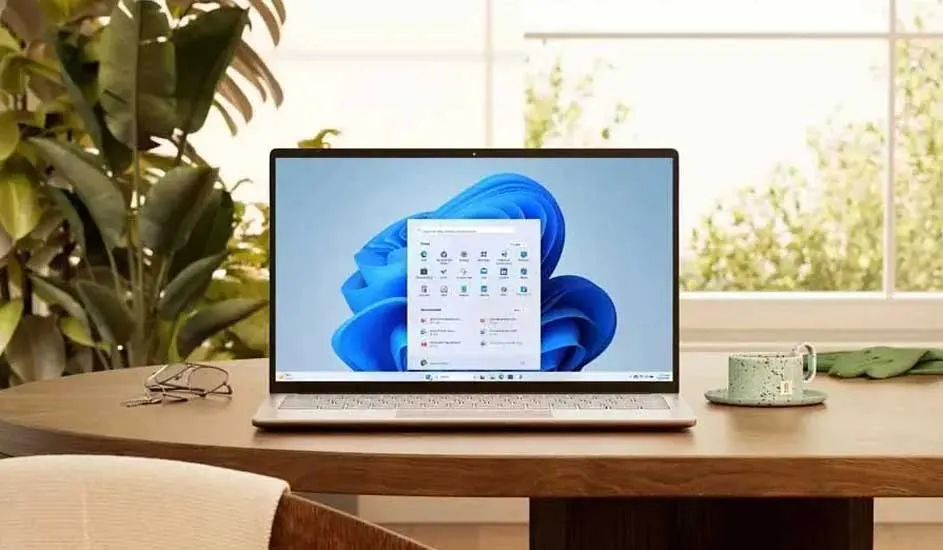
Laptop on a wooden table displays the Windows 11 interface, with a blue background. A cup, glasses, and a green plant are nearby.

Reinstall Windows

If your PC hangs during startup, reinstalling Windows might help. This is a drastic step, so make sure to back up important files first, if possible.

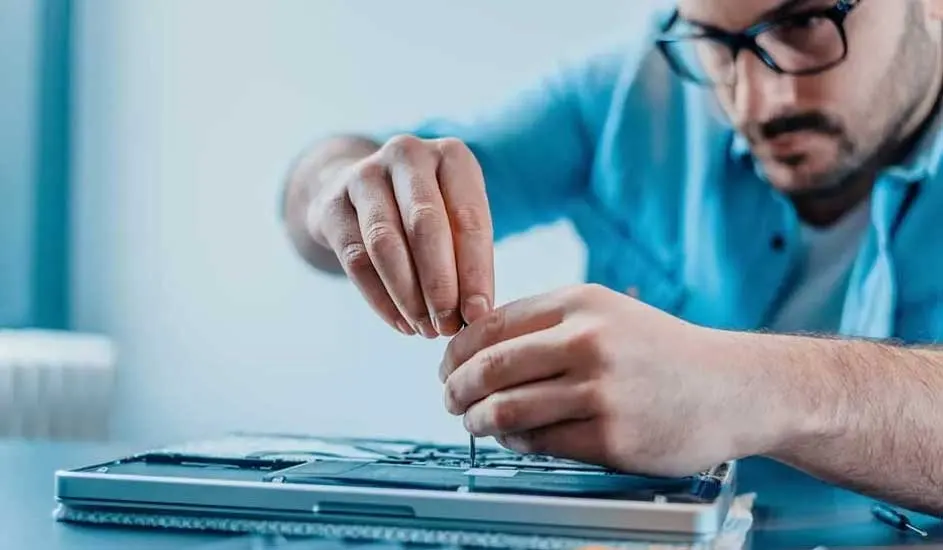
A screwdriver is being used on a laptop that is on a table. The background is a light blue wall.

Still won’t start?

If you’ve gone through all the above steps and your PC still won’t start, it’s likely a hardware issue. In that case, it’s advisable to seek professional assistance.

Common causes of a PC that won’t start

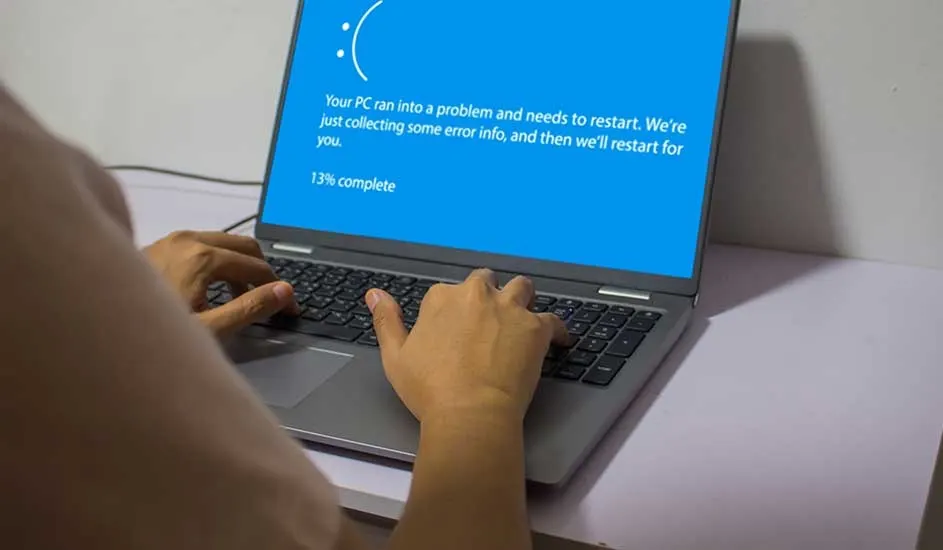
Hands type on a laptop keyboard, screen showing a blue error message with a sad face and "13% complete."

There are many reasons why your PC might not start, whether it’s an all-in-one, a Windows PC, or a Mac. The most common causes include:

  • Loose cables or power not connected
  • Overheating or dust build-up
  • Black, blue, or non-functioning screen
  • Windows update errors
  • Hard drive damage
  • BIOS or firmware issues
  • Driver conflicts or corrupted files

More about which PC brand to choose

Still can’t start your PC?

Two people at a desk look at a black laptop. One wears a red shirt with a white swirl logo, the other a yellow shirt and gray jacket.

If your PC still won’t start despite your attempts, it’s time to consider cleaning or repair. Have your device checked and possibly cleaned: a full hard drive, malware, or corrupted files can disrupt your startup process. Our experts are happy to help, even if your computer starts but does not function properly.

More information about cleaning your PC

Advice on a PC that won’t start at MediaMarkt

If your PC won’t start, we’re here to help. At MediaMarkt, we guide you step-by-step through possible causes and solutions. From a loose power cable to overheating or software faults – you’ll find clear tips to get your computer working again. Still no luck? Our specialists will gladly assist with a thorough check or repair.

Frequently asked questions

These articles may also be interesting for you