MM logo white 1
MM logo red
Image description is not available

How do you use your iMac as a second screen?

Luca7 OCTOBER 2025
Two screens display desert scenes, with keyboard, mouse, and plants on a wooden desk against a gray wall.

Using your iMac as a second screen requires a few steps and the right materials. On this page, we offer you a handy guide that takes you through the process. Do you have any questions or uncertainties? We are ready to answer all your questions and help you get the most out of your set-up.

Curious how you can use an iMac as a second screen?

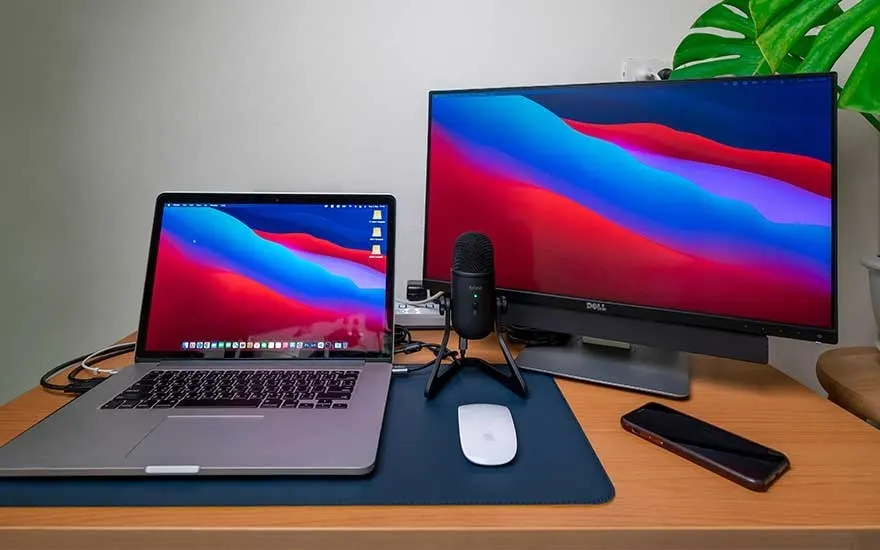
A desk holds a laptop, monitor with red and blue wallpaper, a microphone, a mouse, and a smartphone on a blue pad.

Do you need an extra screen and are you considering using your Apple iMac? Good news, because with the right materials you can easily transform your iMac into a second monitor. In the following paragraphs, we take you through the process: from the necessary cables and accessories to the specific settings, so you have everything in order to get started successfully. Use your iMac not only for your daily tasks, but also as an extension of your workspace.

See our desktops

This is how you know you have everything you need to use an iMac as a screen

An office scene with a light wood desk holding a teal computer, keyboard, and notebook. Shelves with bottles line the wall. Outside, a city building is visible.

Do you want to use your iMac as an extra computer screen for photo and video editing or take advantage of a monitor offer? Before you use an iMac as a monitor, check if the operating system (macOS High Sierra or earlier) and the hardware are compatible. It is important that the iMac has a bidirectional Mini DisplayPort or Thunderbolt port. 27-inch iMacs from late 2009 and mid 2010 have a Mini DisplayPort, while models from mid 2011 to 2014 have a Thunderbolt port. Make sure the PC you connect the iMac to also has a corresponding port. Alternatively, an HDMI to Mini Display adapter can be used. Check below if you have all the necessary cables and a stable power supply to set this up successfully and you can get started.

Read more about our best monitors

Connecting your iMac and using it as a monitor: this is how you do it

Discover in 4 simple steps how to connect your iMac and use it as a monitor.

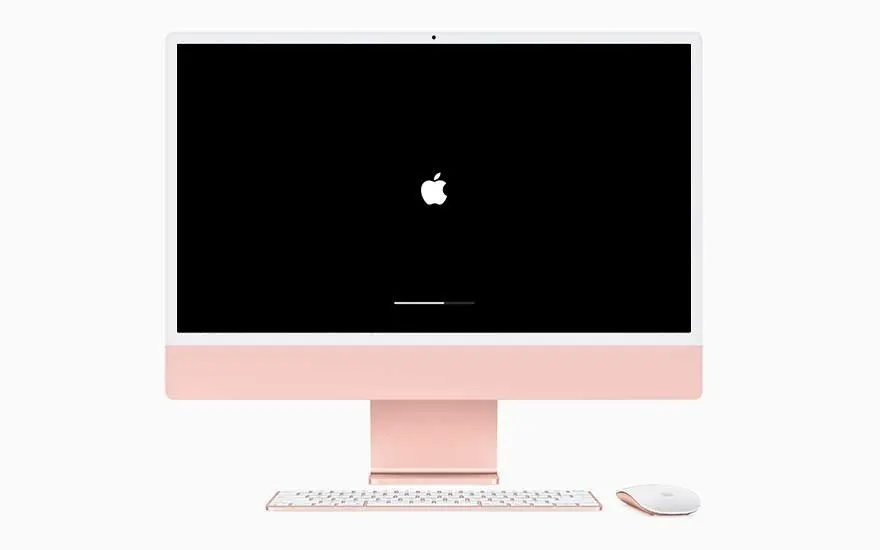
A pink iMac on a white surface with a black screen displays a white Apple logo and loading bar. A white keyboard and mouse are below.

Start up the iMac

To start your iMac, press the power button located at the back of the computer screen, usually in the lower right corner. Then wait a few seconds until you hear the start-up sound and see the Apple logo appear on the screen, which indicates that the iMac is starting up.

See all our Apple iMacs
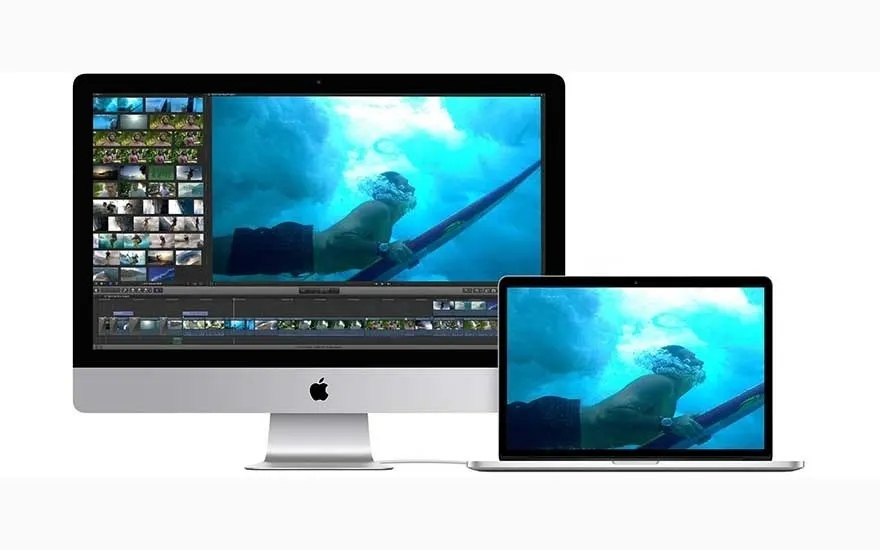
A silver desktop and laptop display a blue underwater scene on a white background. The desktop screen also shows a video editing timeline.

Make sure your other device is also started up

When you want to use your iMac as a second screen, it is important that the device you connect the iMac to, such as a MacBook or another type of computer, is fully started up and ready for use. This means that all necessary start-up processes are completed, and the device is active.

Computer doesn't start up?
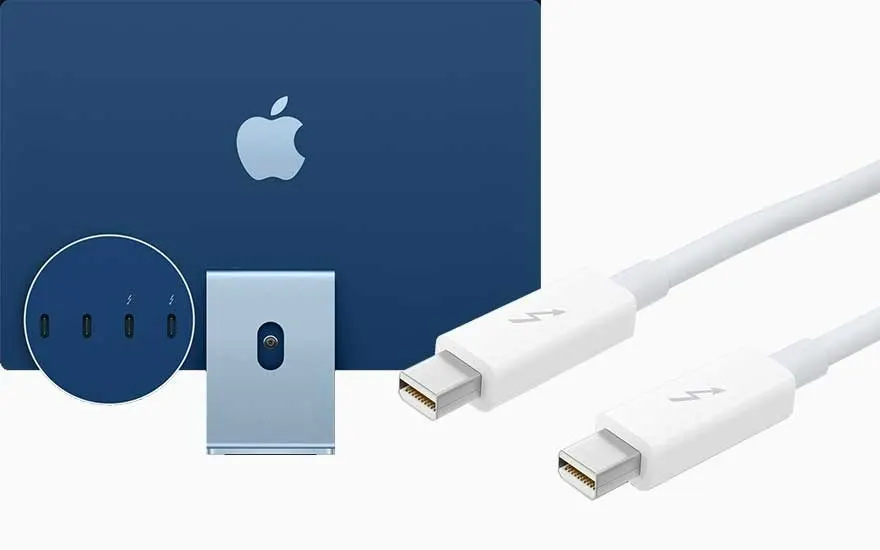
A blue computer with an Apple logo, a silver hub with ports, and two white Thunderbolt cables on a white background.

Connect the iMac via the Thunderbolt cable

To use your iMac as a second screen, connect it to another Mac with a cable, the Thunderbolt cable. Make sure you use the Thunderbolt ports of both devices for the connection. This direct cable connection enables the iMac to function as an external display, for example for working from home, giving you extra workspace that is especially useful for tasks requiring more screen space. If you use an HDMI cable, use an adapter by connecting it to your PC and then connecting the other end to your iMac.

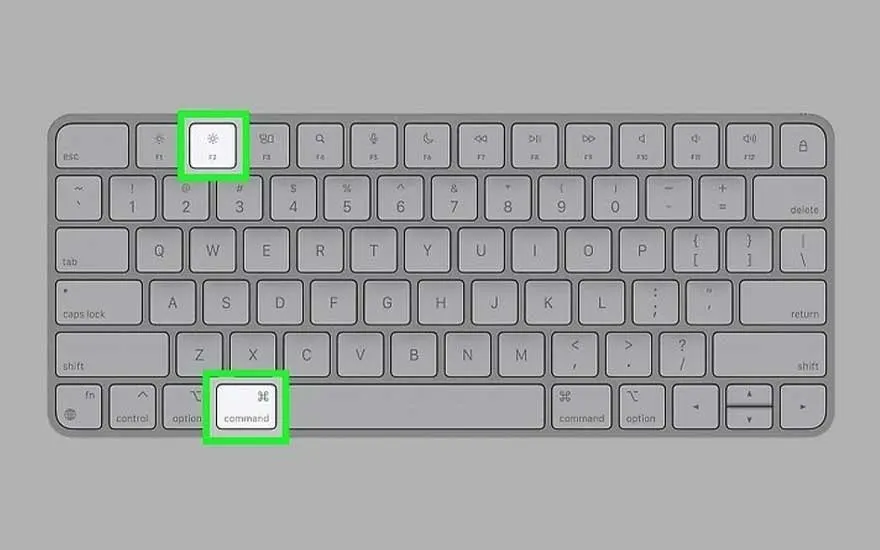
Grey keyboard on a grey background. The keyboard has function keys, number keys, letter keys, and command keys.

Press Command-F2 on the iMac keyboard

To use your iMac as an extra screen, press Command-F2 on the iMac keyboard. This shortcut activates “target display mode”, allowing the iMac to function as an external display for another Mac such as a MacBook Air or MacBook Pro. Make sure both devices are correctly connected and switched on before using this key combination.

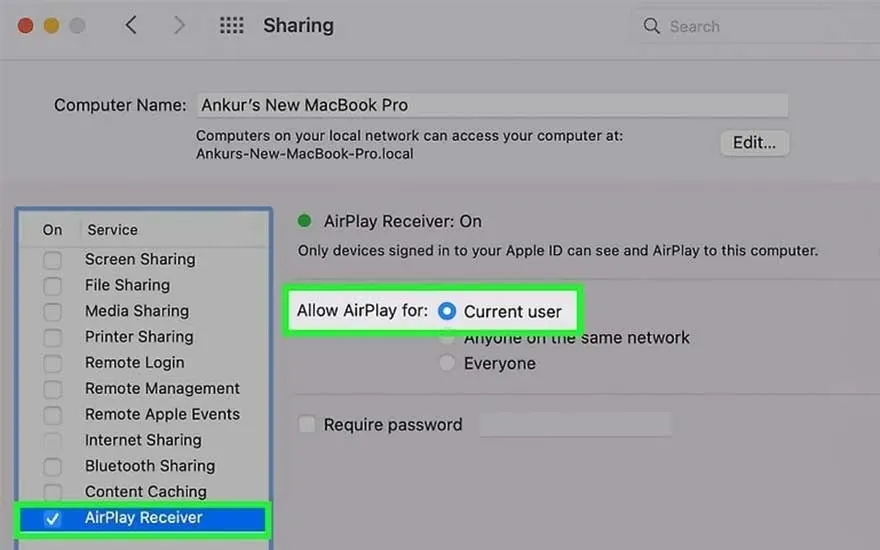
A screenshot of macOS Sharing preferences. The left pane lists services, with "AirPlay Receiver" selected. The right pane shows AirPlay is on, set to "Current user".

Does the iMac also work wirelessly as a second screen?

You can use your iMac wirelessly as a second screen thanks to AirPlay. With this technology, developed by Apple, you can share your screen or stream videos from an Apple device such as a Mac Mini or Mac Studio to your iMac. Before you start, go to the settings for “AirDrop and Handoff” to indicate who can use AirPlay via your iMac. Then select on your Apple device the screen you want to share and click the AirPlay button (indicated by an arrow surrounded by a circle or square). Finally, choose your iMac as the playback destination. Enter the 4-digit code on your iMac if necessary.

How to choose a new iMac?

The best choice remains a regular monitor as a second screen

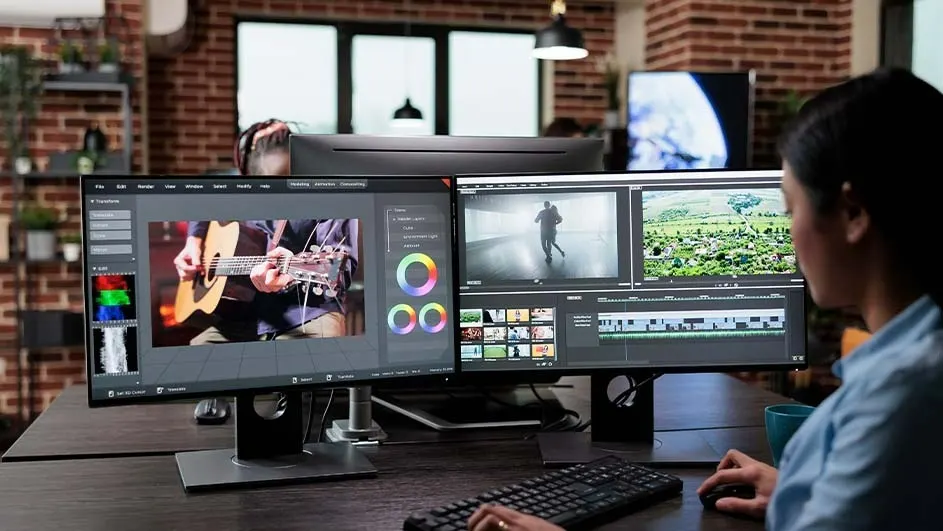
Two monitors display video editing software with timelines and video clips on a dark wooden desk with a keyboard.

Are you the owner of a Windows laptop? For many users, a standard monitor is indeed often the best choice for an additional display. Monitors are specifically designed for this purpose and offer flexibility in terms of settings and connection options, including HDMI and DisplayPort. Moreover, they are often more affordable and offer the necessary flexibility for ergonomic work, such as tilting, rotating and height adjustment, making them ideal for prolonged use in various work setups. Not sure which monitor to buy? Be sure to read our guide to find out what the best PC monitor is for you.

Lees meer over onze beste monitors

These articles may also be interesting for you