MM logo white 1
MM logo red
Image description is not available

How do you transfer data from one iPhone to another?

Jasper19 APRIL 2026
Two smartphones face each other as a bright data beam connects them, showing clear on screen buttons labelled ‘Send’ and ‘Receive’.

When you transfer data from one iPhone to another, you take all your important information, personal settings and photos with you to your new device. This way, everything still feels familiar and you can start using your new iPhone straight away, just as you’re used to. By transferring your iPhone data correctly, the switch goes smoothly and without disrupting your everyday use.

In what ways can you transfer data from your old iPhone to your new one?

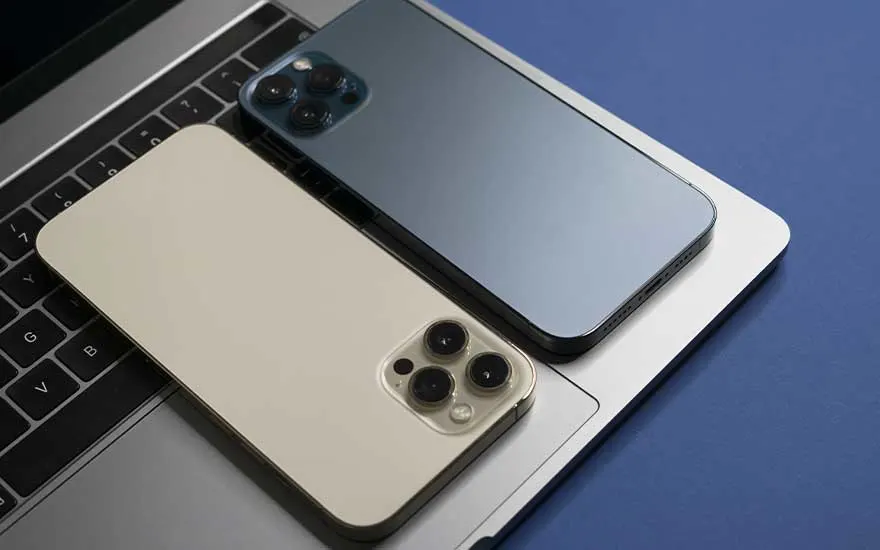
Two modern iPhones, one gold and one blue, rest side by side on the keyboard of an open laptop, placed neatly against a plain blue backdrop.

Apple offers several ways to transfer data from your old iPhone to your new iPhone: directly via Quick Start, via iCloud or via a computer using Finder. Below, you’ll find how data transfer works for each method, so you can immediately follow the steps that best suit your situation.
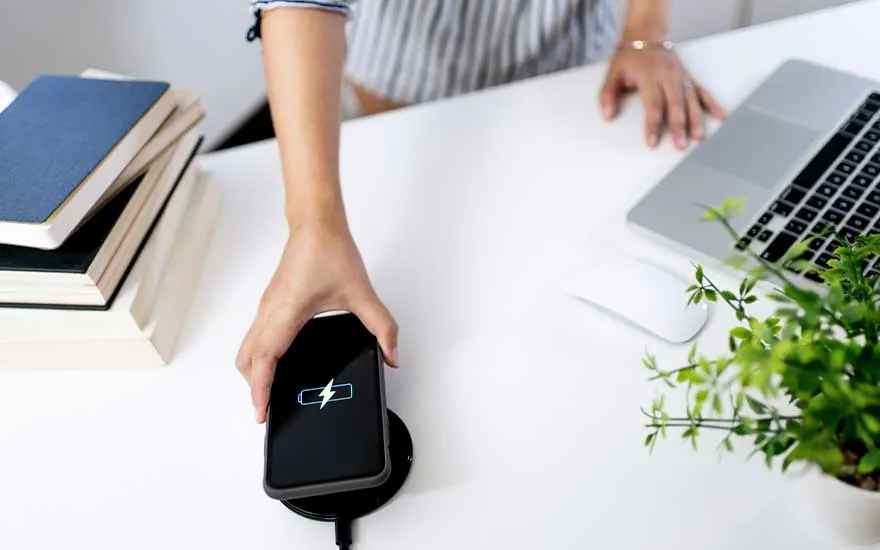
A hand places a smartphone on a wireless charger on a tidy desk, beside an open laptop, a stack of books and a small green plant.

Transfer data from iPhone via Quick Start

With Quick Start, you transfer your data directly from your old iPhone to your new iPhone. This is the fastest method if you still have your old iPhone in hand.

For a successful transfer:

  • Your old iPhone is running iOS 11 or later.
  • Bluetooth and Wi‑Fi are switched on on both iPhones. Tip: share Wi‑Fi from the old to the new iPhone.
  • The iPhones are placed next to each other (preferably connected to the mains. Wireless charging is fine).
  • During the process, your old iPhone may ask for your passcode. Keep it close.

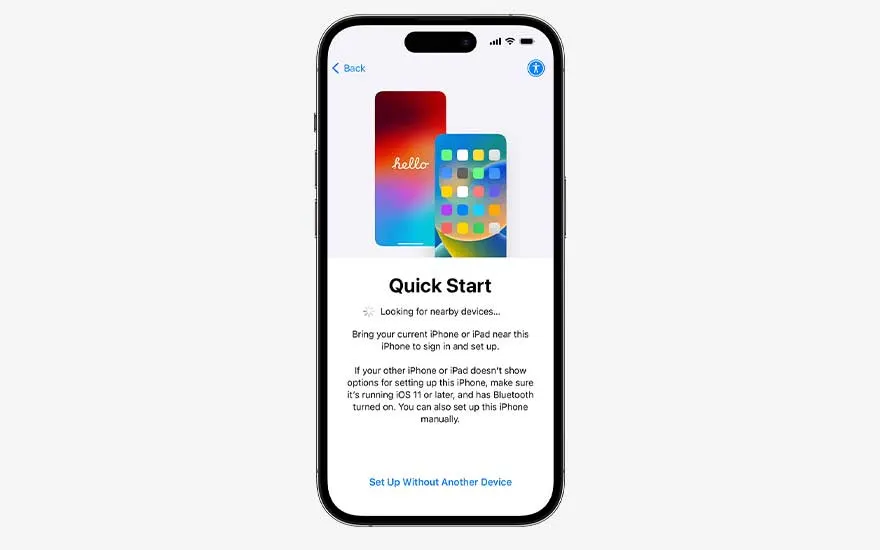
An iPhone displays the Dutch ‘Begin direct’ setup screen, explaining how to configure a new device automatically using another nearby device.

Transfer your data using Quick Start:

  1. Switch on your new iPhone. On your old iPhone, Quick Start appears automatically.
  2. Check your Apple ID and tap Continue.
  3. A blue animation appears on your new iPhone. On your old device, a circular camera window opens. Hold the animation within the circle to scan it.
  4. Set up Face ID or Touch ID on your new iPhone.
  5. Choose how you want to transfer your data:
  • iCloud (only possible if you have an iCloud backup of your iPhone data): apps and data are downloaded in the background. You can start using your new iPhone straight away.
  • From your old iPhone: you can only use both devices again once the transfer is complete.

Extend your iPhone’s battery life with these tips
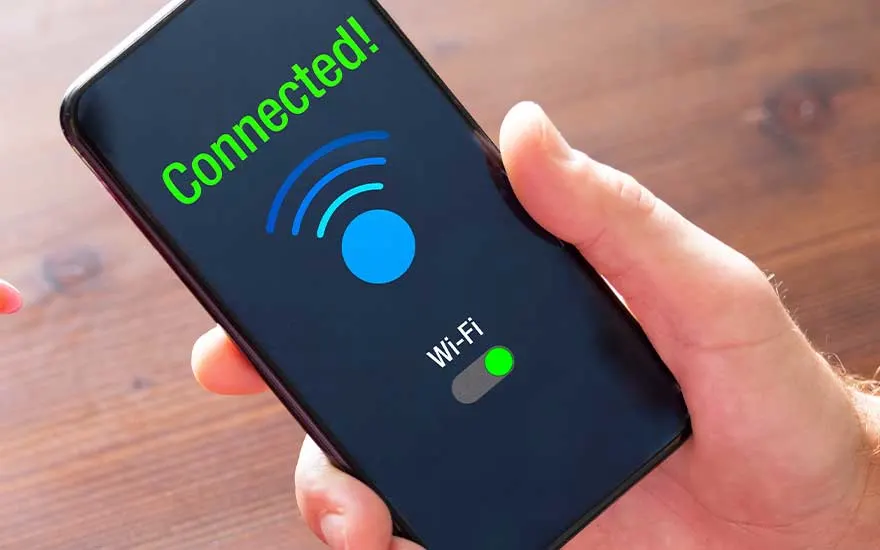
Close up of a smartphone screen showing ‘Connected!’, a large blue Wi Fi symbol and a green switch indicating the wireless connection is active.

Transfer data from iPhone via iCloud

With iCloud, you transfer your data using an online backup. This method is handy if you no longer have your old iPhone nearby.

For a successful transfer:

  • You already have a recent iCloud backup, or you still have your old iPhone to create one.
  • Your new iPhone is connected to Wi‑Fi and, preferably, to the charger.

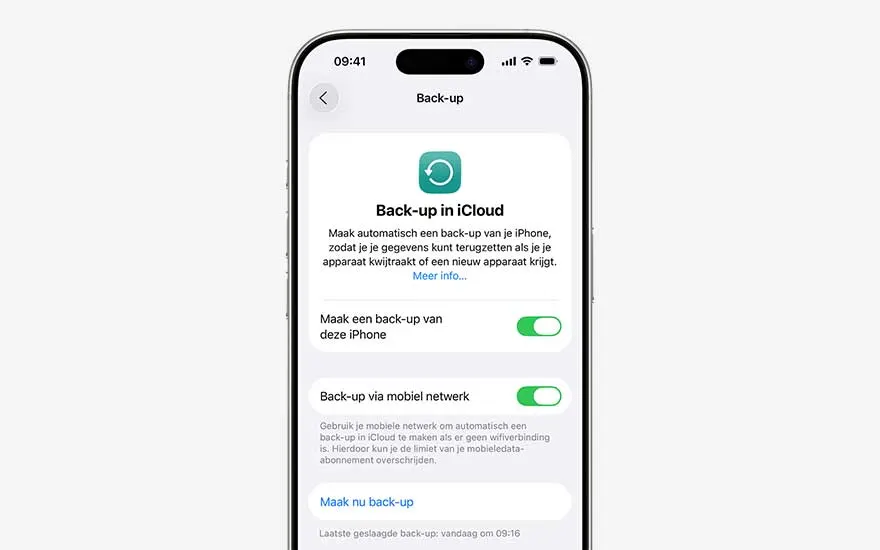
An iPhone shows the ‘Back up in iCloud’ page in Dutch, featuring descriptive text and green toggles to enable automatic device backups.

Create an iCloud backup on your old iPhone (skip this step if you already have a recent backup):

  1. Go to ‘Settings’ and tap your name.
  2. Select ‘iCloud’ and then ‘iCloud Backup’.
  3. Tap ‘Back up now’ and wait until it’s finished.

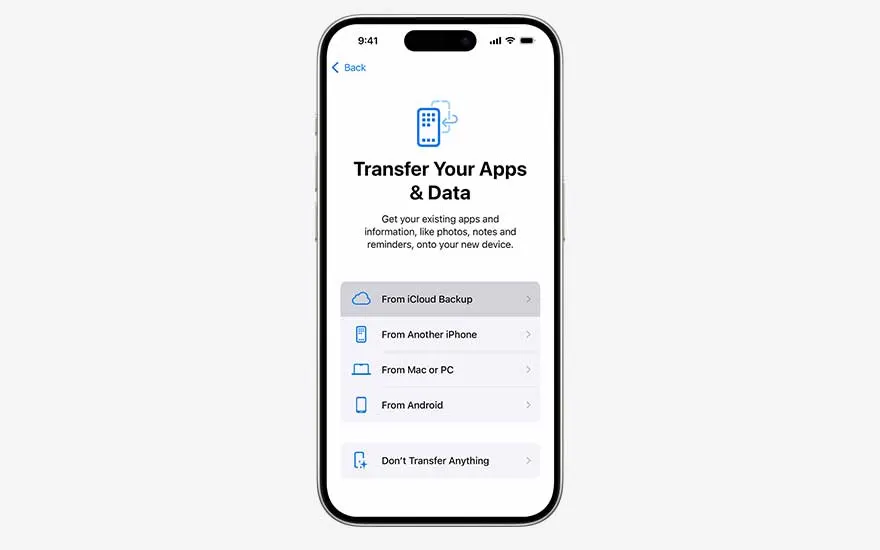
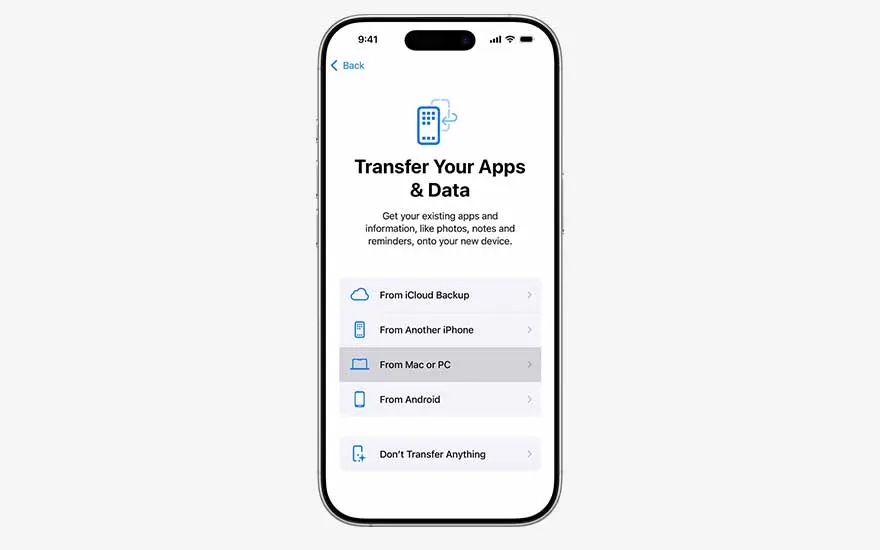
An iPhone screen in French explains how to transfer apps and data to a new device, offering options via iCloud, another iPhone, Mac, PC or Android.

Transfer your data via iCloud:

  1. Switch on your iPhone and follow the steps until you see the ‘Apps & Data’ screen.
  2. Choose ‘Restore’ from ‘iCloud Backup’’.
  3. Sign in with your Apple ID.
  4. Select the most recent backup.
  5. Keep your iPhone connected to Wi‑Fi and power until the transfer is complete.

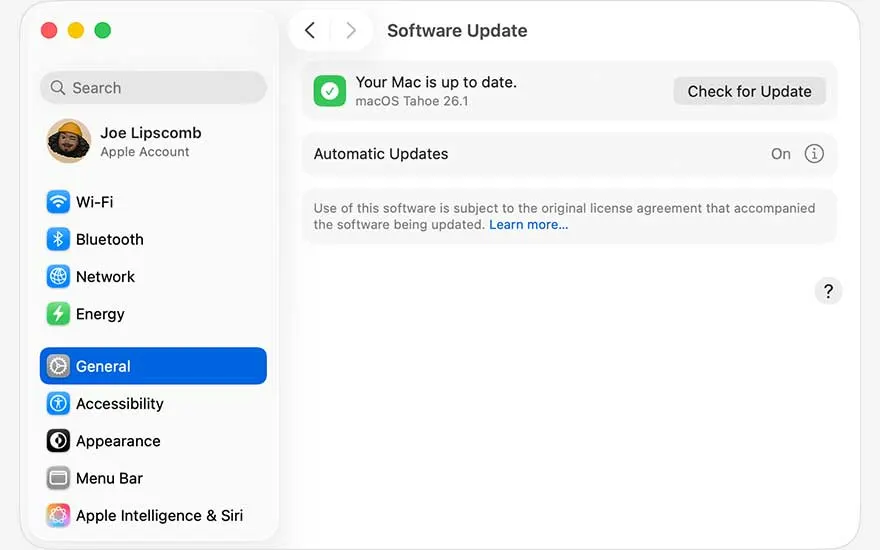
A Mac screen displays the ‘Software Update’ window, confirming the system is up to date and offering options for automatic or manual updates.

Transfer data from iPhone via Finder

With Finder, you transfer your data using a local backup on your Mac. This method is useful if you want to move your data offline.

For a successful transfer:

  • You have a Mac that is up to date.
  • You have a recent backup on your Mac, or you still have your old iPhone to create one.
  • If your backup is not on a Mac but on a Windows PC, use the Apple Devices app instead.

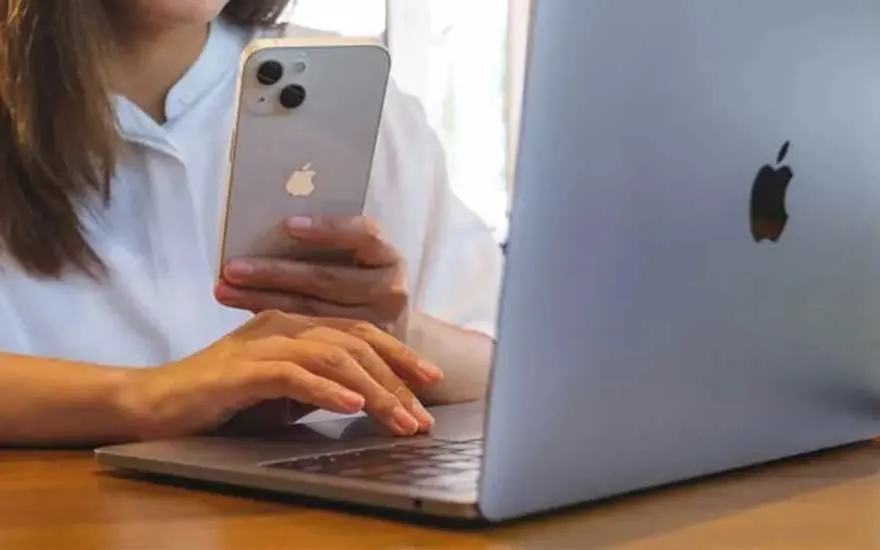
A person sits at a wooden table with an open MacBook, holding an iPhone upright in one hand while typing on the laptop keyboard with the other.

Create a backup via Finder (skip this step if you already have a recent backup):

  1. Connect your old iPhone to your Mac and open ‘Finder’.
  2. Select your iPhone in the navigation menu under ‘Locations’.
  3. In ‘Finder’, choose ‘Back up all of the data on your iPhone to this Mac’ and then click ‘Back up now’.

An iPhone displays the Dutch ‘Apps en gegevens’ screen, listing several choices for restoring apps and data or deciding not to transfer anything.

Transfer your data to your new iPhone via Finder:

  1. Switch on your new iPhone and follow the steps until you see ‘Quick Start’.
  2. Choose ‘Set up manually’ and continue until you reach the ‘Apps & Data’ screen.
  3. Select to restore data from a Mac or PC.
  4. Connect your new iPhone to your Mac.
  5. Open ‘Finder’ and select your new iPhone under ‘Locations’.
  6. Choose ‘Restore backup’ and select the correct backup.
  7. Wait until the restore process has finished.

Which iPhone should you choose?

Can you transfer data from an Android smartphone to an iPhone?

Woman in a light jumper casually uses her smartphone, tapping the screen with one finger as soft daylight illuminates her relaxed face.

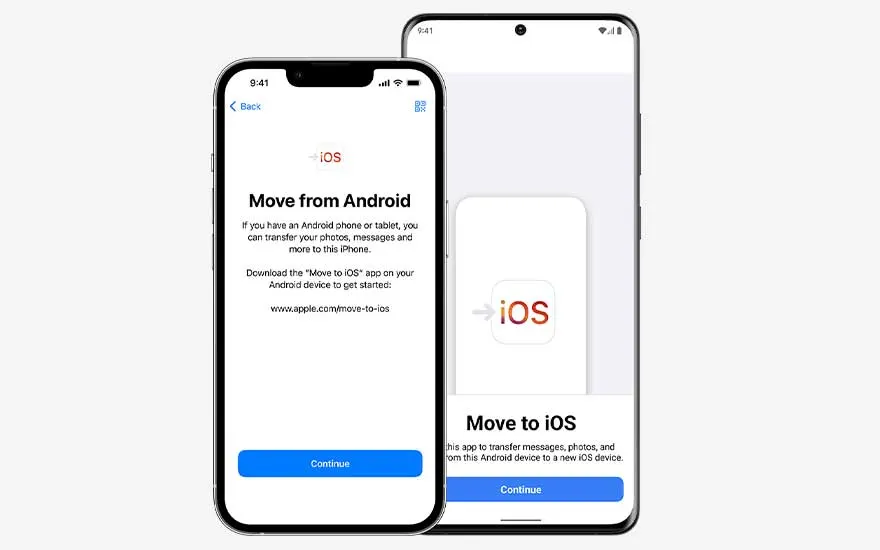
With the Move to iOS app, you can transfer your data from your Android device to your new iPhone. During the transfer, you choose which data you want to take with you, such as your contacts, photos and videos.

For a successful transfer:

  • Your old Android smartphone is connected to Wi‑Fi.
  • The iPhone and Android device are placed next to each other (preferably connected to the mains).
  • Tip: if you want to transfer Chrome bookmarks, use the latest version of Chrome on your Android device.

An iPhone and an Android phone stand side by side, showing French screens that describe migrating content from Android to iOS using a dedicated app.

Transfer your data using Move to iOS:

  1. Switch on your new iPhone and follow the on‑screen steps until you reach ‘Quick Start’.
  2. Choose ‘Set up without another device’ and then ‘From Android’.
  3. On your Android smartphone, open the Move to iOS app.
  4. On your Android device, enter the 10‑digit code shown on your iPhone.
  5. Your new iPhone will create a temporary Wi‑Fi network. On your Android device, tap ‘Connect’.
  6. Select which data you want to transfer and wait until the process is complete.

Our advice on transferring your iPhone

Smiling woman sits on a sofa holding two smartphones, comparing the screens as if she is transferring data from one device to the other.

If you still have your old iPhone, Quick Start is the best choice. It lets you quickly transfer data from one device to the other. If you no longer have your old device but do have a recent backup, you can transfer your data via iCloud during the setup of your new iPhone. If you work with physical backups on your Mac or Windows PC, you can easily restore via Finder and the Apple Devices app respectively. By following the steps in this guide, you’ll quickly pick the method that’s most convenient for you and soon be enjoying your new iPhone.

Compare iPhones


Frequently asked questions

These articles may also be interesting for you