
MM logo white 1
MM logo red
Image description is not available

How do you delete apps on a MacBook?

Luca31 AUGUST 2025
A person works on an Apple MacBook linked to two large monitors, while holding an iPhone, on a wooden desk with keyboards and tidy cables.

Removing apps is a great way to free up space on your MacBook and keep things running smoothly. Whether you're making room for updates or simply reorganising, there are multiple ways to uninstall apps depending on how they were installed. We’ll walk you through each method.

Delete apps from your MacBook: how to do it?

Hands work on an Apple MacBook in a café, map pins on screen, with a phone, bag, and a Starbucks iced drink on the wooden table.

There are several ways to remove apps from your Mac, iMac, or MacBook. This way, you can free up space for new apps or macOS Sequoia, for example. You can uninstall apps using Launchpad, Finder, the App Store, or directly from the Dock. Here’s how each method works.
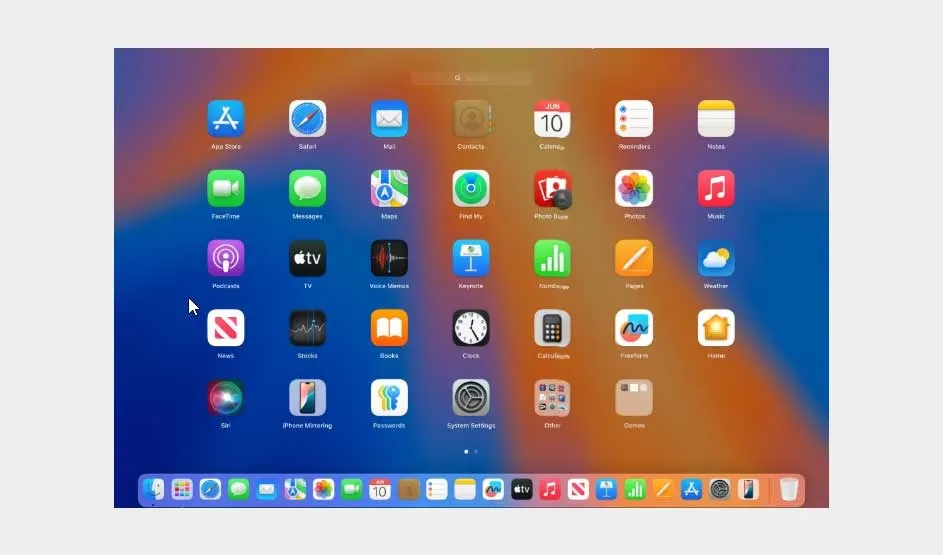
An Apple Mac screen shows Launchpad with colourful app icons like Safari, Mail, Photos, Music, and Settings over a bright gradient background.

Uninstall apps via Launchpad

Launchpad is ideal for removing apps downloaded from the App Store:

  1. Open Launchpad.
  2. Hold the Option (⌥) key until the app icons start to wiggle.
  3. Click the X icon next to the app.
  4. Confirm by selecting Delete.

If no X appears, the app wasn’t downloaded from the App Store.

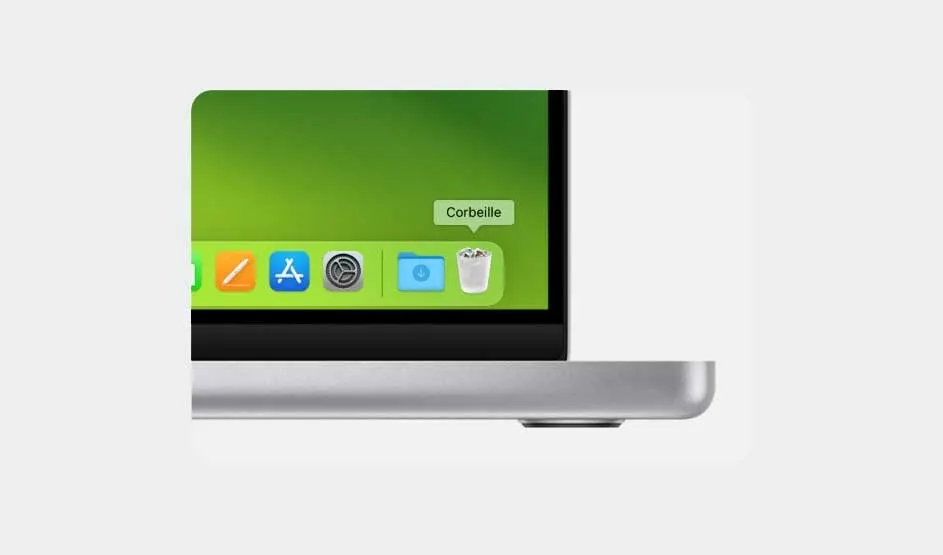
Close-up of an Apple MacBook corner showing the Dock on a green desktop, with the Trash labelled “Corbeille”, apps, and the sleek silver chassis.

Uninstall apps via Finder

This method works best for apps installed outside the App Store:

  1. Open Finder and go to the Applications folder.
  2. Right-click the app and select Move to Bin.
  3. Empty the Bin to permanently delete the app.

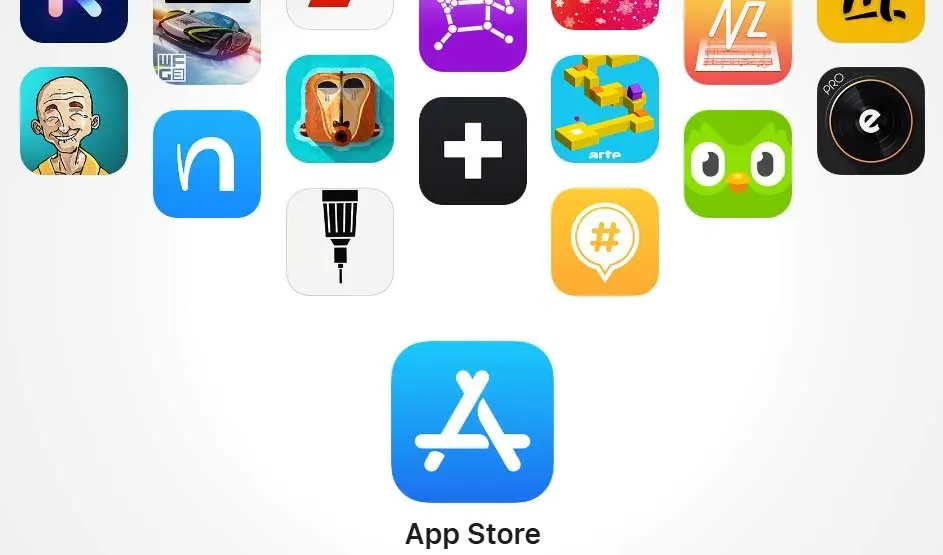
A collage of colourful app icons surrounds the blue Apple App Store logo, highlighting downloads and creativity in a clean, minimal layout.

Uninstall apps via Mac AppStore

Apps downloaded from the AppStore can also be removed from here:

  • Open the App Store and click your profile in the bottom left.
  • Locate the app, click the 3 dots, and choose Delete App.
  • Confirm your choice.

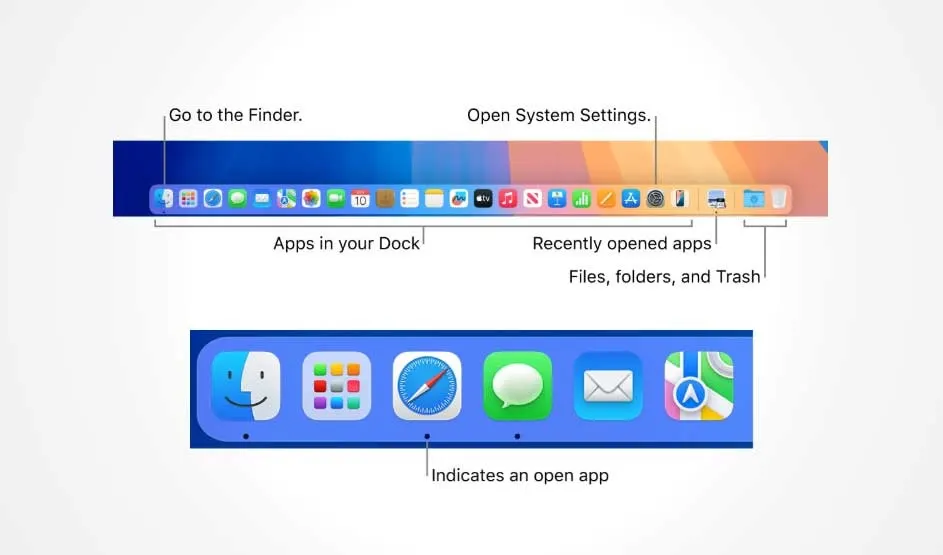
An Apple Mac Dock diagram labels Finder, System Settings, apps, recent apps, and the Trash, with dots indicating which apps are open.

Uninstall apps via Dock

  • Drag the app icon from the Dock into the Bin.
  • Open the Bin, right-click the app, and choose Delete Immediately.

What should you do if you can't delete apps from your MacBook?

A woman in sunglasses works at a rooftop café, checking her phone beside an open Apple MacBook, with snacks and city towers in the dusk.

You might not be able to delete certain apps because they’re built into macOS. Examples include Mail, Safari, and Music. You also can’t remove an app while it’s running. Quit the app or restart your Mac in Safe Mode before trying again.

How to find hidden apps on a MacBook

macOS hides some system apps and files to prevent accidental deletion. To view them:

  • Open Terminal
  • Type defaults write com.apple.finder AppleShowAllFiles TRUE; killall Finder.
  • Finder will restart and show hidden files.

Be cautious: don’t delete system files unless you know what they do.

Uninstalling apps on other Mac devices

Hands typing on a silver Apple MacBook on a low table outdoors, beside a glass, notebook, and newspaper, with a grey sofa in sunlight.

The process is nearly identical across all Mac devices, including iMacs and Mac Minis. Use Launchpad, Finder, or the Dock depending on how the app was installed.

How to compare MacBooks

Our advice on how to delete apps on your Apple MacBook

A smiling woman with AirPods works on an Apple MacBook by a window, editing a colourful “After School Art Program” design in a cosy study.

Uninstalling apps is an easy way to optimise your Mac’s performance. Choose the method that matches where the app came from (App Store or otherwise). Be cautious with essential apps and system files and use Terminal only when needed.

Find out how to reset your MacBook

These articles may also be interesting for you