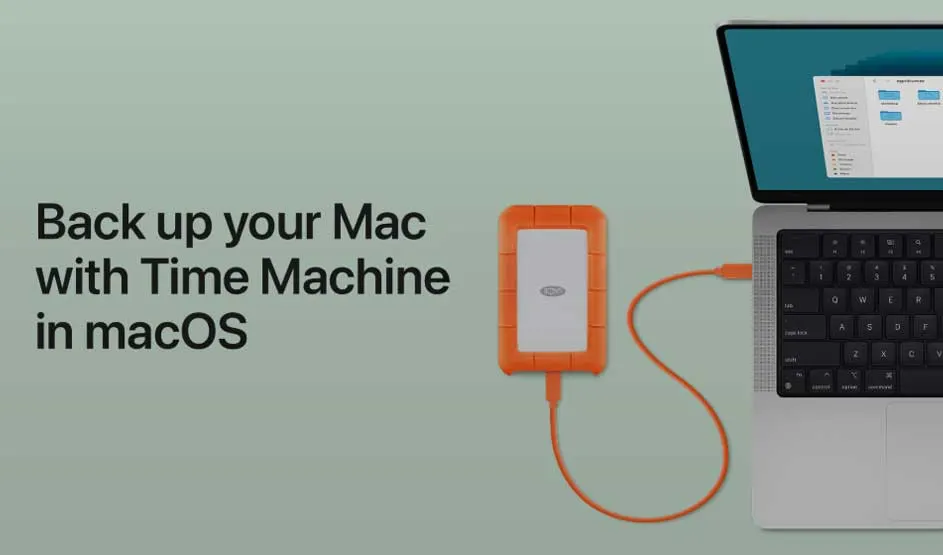
Backup with Time Machine
- Connect an external drive.
- Go to System Settings -> General -> Time Machine.
- Select the drive, confirm, and turn on Automatic Backups.


Reinstalling macOS can resolve software issues, boost performance, or give you a clean start. This process includes backing up your data, entering recovery mode, and reinstalling the system. Here’s everything you need to know.
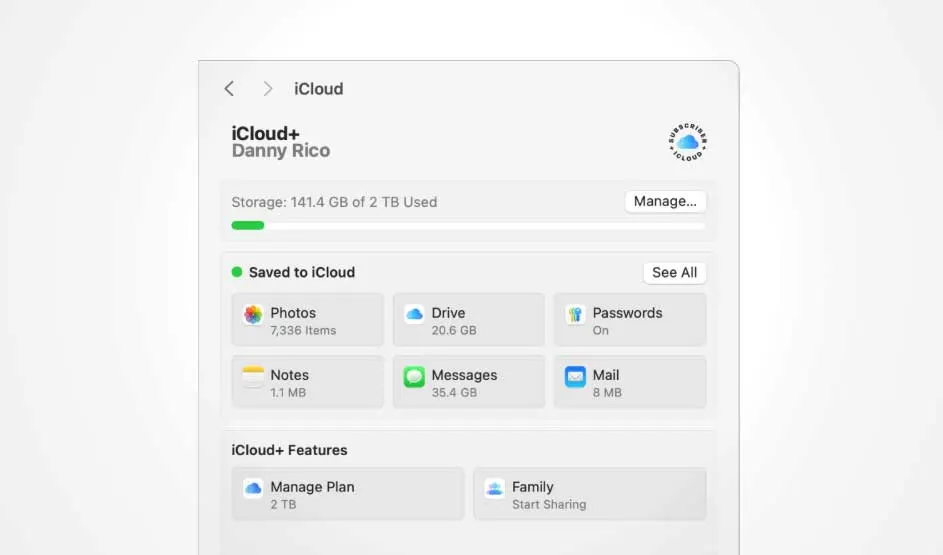

The way to access recovery mode depends on your Mac’s chip.
How to check your chip
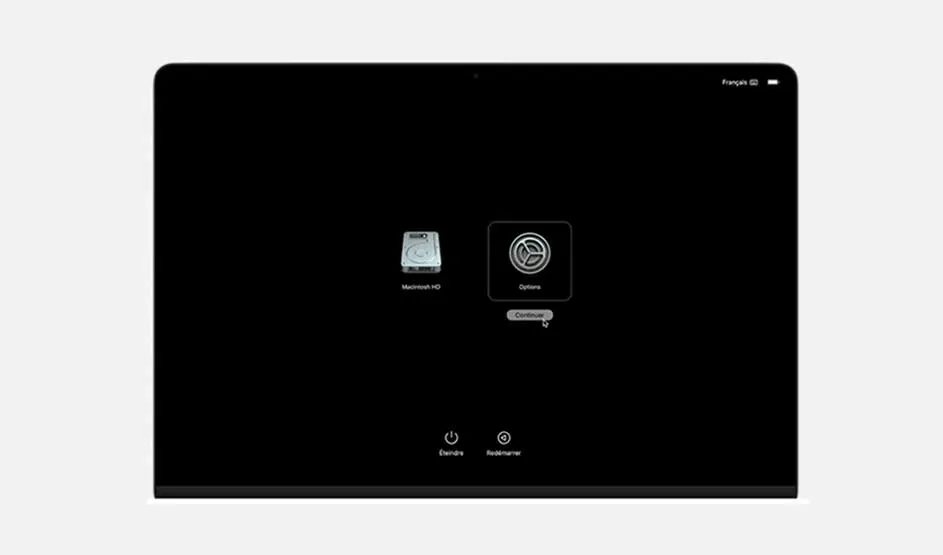
1. Restart and immediately hold one of the following:
2. Release keys when the Apple logo or globe appears.

If recovery mode fails, try these solutions:

The version installed depends on:
Most Apple Silicon and newer Intel Macs will reinstall macOS Sequoia (version 15) automatically. Older models may install an earlier version.
macOS Recovery makes reinstalling easy: just back up your data first. Choose the right method based on your Mac’s chip, and if you hit issues, use Disk Utility or a bootable USB as backup options.